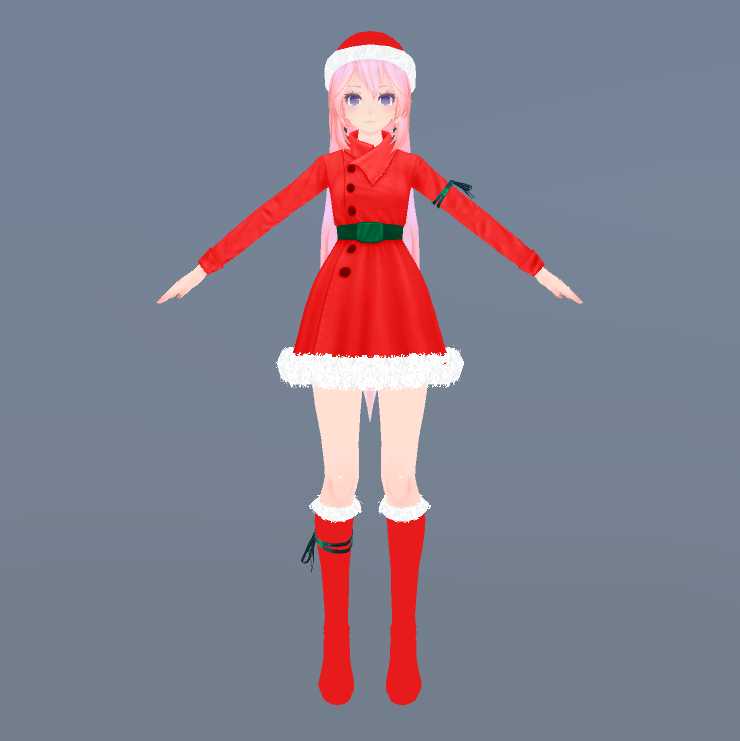
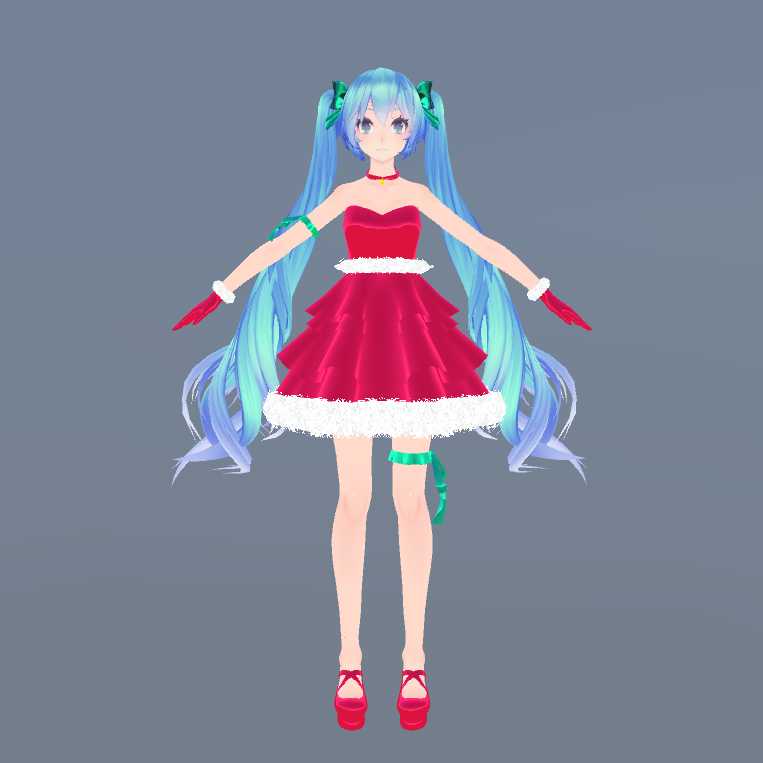
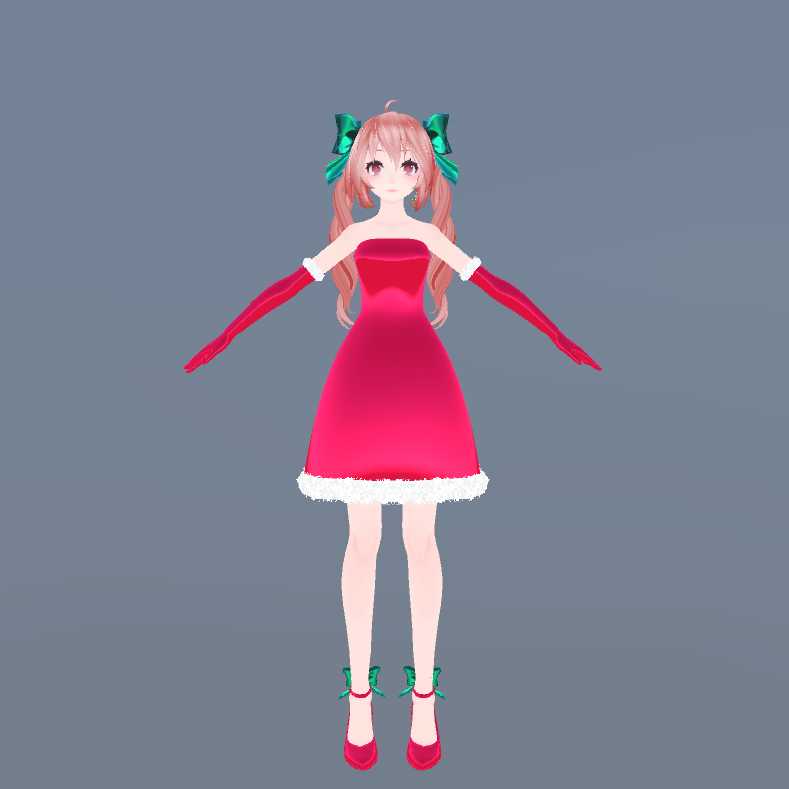
Miku, Luka, and Teto Christmas Pack 2.0 update
Back to full item page
#3
A quick check that you are a person keeps downloads free. Once it is done, the download button unlocks.
5 of 5 free downloads left today.
Sign up to get 100 downloads per day for free.
Want more like this?
Sign in to follow and get alerts
All downloads
4 files for this item
ago
File: 49362
Size: 40.9 MB
Type: unitypackage
Avatar
PC Very Poor
Quest No
147.1k Polygons
38 Materials
839 Bones
73 Blendshapes
20 Dynamic Bones
85 MB Textures
SDK
VRChat SDK2 Avatar
Avatar setup
Avatar Descriptor
Lip Sync (Visemes)
Full Body Ready
Viewpoint set
Rig & mesh
Humanoid Rig
Viseme Blendshapes
Facial Blendshapes
Blendshapes
Dynamics
Dynamic Bones
Dynamic Bone Colliders
Content
Source Files
Custom Shaders
Scenes
Realtime Lights
C# Scripts
Textures
Shaders
Poiyomi
Cubed's
Unity Standard
Platform
PC Only
Why it is not Quest compatible
- Polygons: 147,114 exceeds the 20,000 mobile limit
- Uses PC-only shaders; Quest requires VRChat/Mobile shaders
- Realtime lights are removed on Quest
PC rank is limited by
- Bones: 839 (Very Poor)
- Dynamic Bone colliders: 94 (Very Poor)
- Material slots: 38 (Very Poor)
- Polygons: 147,114 (Very Poor)
- Dynamic Bone components: 20 (Poor)
Avatars in this package
Christmas Pack
Very Poor
Models
Christmas Miku.fbx
Christmas Teto.fbx
Christmas Luka.fbx
Shaders used
.poiyomi/Toon/Cutout
.poiyomi/Toon/Extras/Cutout With Texture Blending
.poiyomi/Toon/Extras/InnerPano/Cutout
.poiyomi/Toon/Extras/InnerPano/Transparent
.poiyomi/Toon/Extras/Stencil/Invis
.poiyomi/Toon/Transparent
Standard
Measured automatically from the uploaded package. Performance ranks are an estimate of VRChat's own rating.
How to install
- Install the VRChat Creator Companion and create an avatar project. It picks the Unity version VRChat supports.
- Make sure the VRChat Avatars SDK is added to the project in the Creator Companion.
- Open the project in Unity and import the .unitypackage with Assets, Import Package, Custom Package.
- Open the included scene or drag the avatar prefab into your scene.
- Open VRChat SDK, Show Control Panel, sign in, then use Build & Test or upload.